Magoo guide
What every button, counter and label does.
The app interface stays in English. Button names below match what you will see on screen.
Create a Magoo
An image, and what appears on it. That is a Magoo.
What do you want to show?
 Video
 YouTube
 Image
 Audio
 3D Model
The image
The first step after Start Your Magoo!

Tap Camera to take a photo, or Gallery to pick one from your phone. This is the image people point their camera at: a card, a label, a poster, a photo.
Pick a video and the moment it should start from. That moment becomes the photo: print it, and the camera plays the video on from there. Magoo warns you when the moment is blurry.
Right after you choose the photo, drag the four corners to the edges of what you'll scan and leave the background out. Magoo straightens it so the camera finds it more easily. Already cropped? Just tap Continue.
What it shows
The window "What do you want to show?". Pick one; in Studio you can add more.
A video from your phone. It plays on top of the image.
Paste a YouTube link. Dedicate a song or a podcast when you do not want to record yourself.
A picture that appears on top of the image.
A song or a voice message that plays when the Magoo comes alive.
A 3D object that stands on the image.
Finish
The window that opens after you choose.
A switch in the last window, where you name your Magoo. Turn it on to add who it is for, who it is from and when it opens. Off, it is a Magoo as always.
Right after the name, your video, YouTube or image shows on your picture. Drag it with one finger, and pull a corner or pinch to make it bigger or smaller. Gifts can use it too.
Saves your Magoo as it is. Did not move anything? It stays in the middle of your picture.
Puts it back where it started.
Open it in Studio to add images, buttons and more videos, and place everything exactly where you want.
For audio or a 3D model, which have nothing to place: give your Magoo a name and it is done, or Level up.
Studio
Where you build a Magoo in layers. Some tools are only on a computer.
Elements on Scene
 Location
Add layers
Add More Elements. Each thing you add is a layer.
The same as when you create, as many as you want.
On a computer you can pick several images at once. Each layer keeps the name of its file.
A button people tap on the Magoo. Choose what it does under Actions.

Ambiental, Directional, Point and Spot lights, to light your 3D models.
Place each layer
Properties, for the layer you select.

Move, turn and resize the layer. The lock keeps its proportions.
Round the corners of an image or a video.
Rename the layer so you find it in the list.
On a computer, select several layers and set the distance between them in depth, so the Magoo looks 3D.
On a computer, under Depth & Masking. A Window shows what is behind it only through its rectangle, so layers set back look sunk into the image. A Wall hides what is behind it. Show Mask in Editor only shows or hides the violet rectangle while you work.
Actions
What a layer does when someone taps it.

Open a web page.

Play or pause a video of the Magoo.

Show or hide another layer.

Turn the sound off or on.


Open an email, a text message or a call to the address or number you set.

An action of the image itself, not a tap. Choose when the Magoo opens (Visible from) and until when (Visible until). Before then, people see a countdown.
Save
The top of Studio.
The same as On or Off Experiences on your Magoo card.
Choose Save & Exit or Save & Keep Working. Saving also publishes the Magoo: it uses a free live slot or a credit, or asks you to get one. Not Now keeps it as a draft.
In the same window. Saves a new draft with what you see, under another name. The original does not change.

Leave Studio. If you changed something, it asks whether to save first.
Publish and share
A draft is only for you. Publish it so others can open it.
Ready to publish your Magoo?
Publish
The window that opens when you publish.
Uses one of your live slots or credits. The window tells you how many you have.
When you have none left: buy a credit and publish in one step. More options shows the packs.
Takes you to My Magoos, where turning off another live Magoo frees its slot.
Closes without publishing or paying. Your Magoo stays a draft.
Three ways to open it
Once it is published.

Every Magoo has a short link (magoo.me/…). Whoever opens it sees the Magoo right away, with no scanning. When you paste it in a chat, it shows the image, so they know what to point at.

Print it next to the image or show it on a screen. Scanning it opens the Magoo.
If the Magoo is Discoverable, anyone who points the Discover camera at the image finds it, even without the link.
A link is unlisted, not locked: anyone who has it can open the Magoo. Share it with the people it is for.
Your Magoo card
This is how a Magoo looks in My Magoos.



 27
 0

Manage your Magoo
The four buttons next to the name.
Open this Magoo in Studio to change its video, layers or buttons.
Open the Magoo store.
Get the QR code for this Magoo, ready to print or show on a screen.
Remove this Magoo for good. Its link and QR code stop working.
See how it is doing
The row under the name. The numbers are counters.
How many times this Magoo has been opened, by scan or by link.
How many people liked this Magoo.
Read what people say about this Magoo and reply.
Send the link to this Magoo by text, chat or social.
Who can see it
The labels at the bottom. Tap one to change it.
You can hand this Magoo over to someone else. Once they claim it, it is theirs.
Publish a Magoo so other people can open its link or QR code. A draft is for you. Three live slots are included; drafts do not use them. Turning off or deleting a live Magoo frees its slot.
Discoverable: found by pointing a camera at its image. Not Discoverable: scanning its image does not find it.
On: this Magoo and its Reveals can appear in Experiences, and other people can record Reveals of it. Off: removes it and its Reveals from Experiences and pauses Reveals by other people. Nothing is deleted; turning it back on brings back the Reveals that can be shown.
Studio warns you before replacing an existing image. Its existing Reveals become inactive, including those made by other people. Their authors can still view or delete their preserved footage, but must record a new Reveal to share again. Putting the old image back does not reactivate them.
The Magoo camera
This is what you see when a Magoo comes alive on your screen.
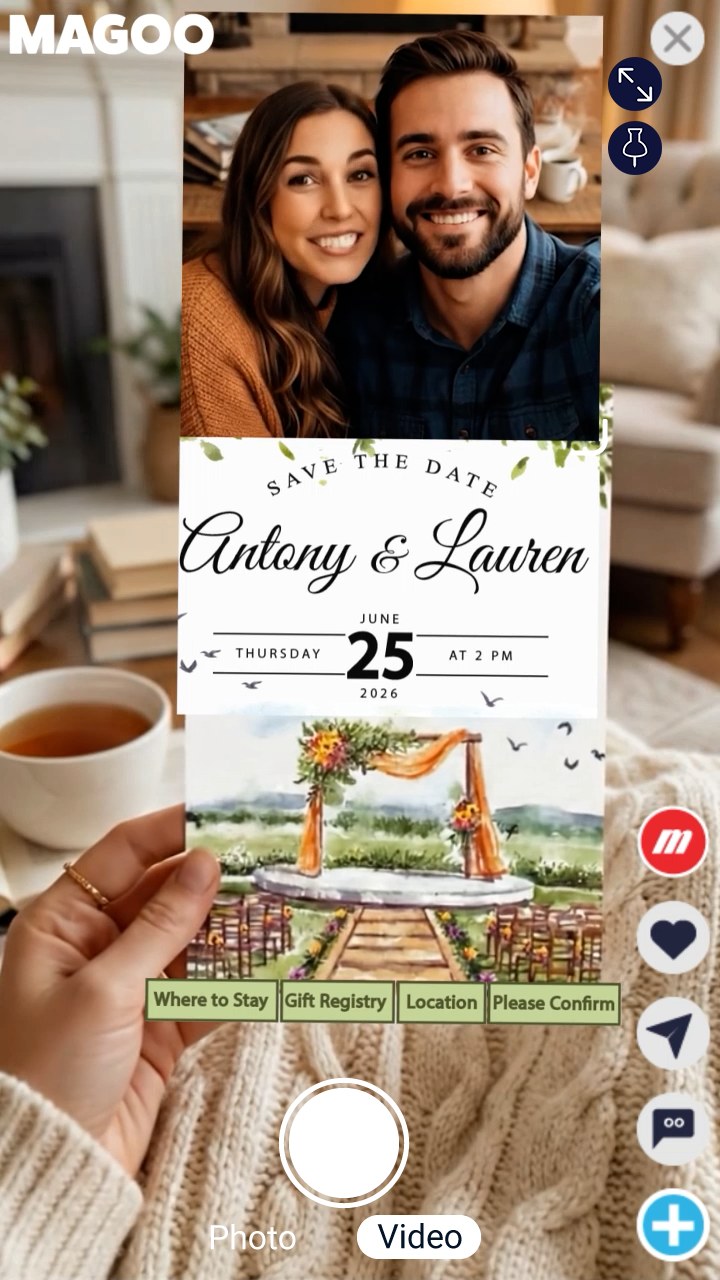
Move the video
The buttons at the top right, and the corner of the video.


Make the video fill your screen. Tap again to put it back on the image.


Keep the video on your screen even if you move your phone away from the image. Tap again to attach it back.
Drag the corner of the video to make it bigger or smaller.
Leave the camera.
React and share
The buttons on the right edge.

The profile picture of the person who made this Magoo.
Tell the creator you liked this Magoo.
Send the link to this Magoo by text, chat or social.
Read what people say about this Magoo and leave your own comment.

Start your own Magoo.
Create your Reveal
The red button at the bottom, and the window that opens after you record.
Record the Magoo coming alive. The recording contains the camera and the experience, without the Magoo toolbar or logo baked into the footage. Not offered when the Magoo's video is YouTube: a recording cannot take YouTube in.
End the recording. On a Magoo with a video, it also stops by itself when the video ends.
After you record, the preview opens.
Choose Post to Experiences or Keep it private. You can add an optional description. Upload starts after you choose a destination. If upload fails or you cancel, the preview stays available.

Keep a copy without uploading it. On supported iPhones, Save to Photos opens the system share sheet: choose Save Video. Other supported browsers download the file.
Remove the recording.
Some Magoos have their own buttons. Tap one to open what the creator added. Each creator designs them, so they look different on every Magoo.
Countdown Card
On a Magoo with a date and time, set with Calendar in Studio.
Until its date and time, the card shows a countdown and a waiting video. Everyone sees the same, the person who made it included, so nobody can spy on the surprise from their phone.
To see the surprise before then, open the Magoo in Studio and tap Preview under Calendar. The preview works only in your account, for 10 minutes, and does not record Reveals.
Your printed cards
Cards from the Store have their own guide: what you get, personalizing, printing, what they see and questions. Read the printed cards guide →
Reveals
A Reveal is the recording of a Magoo coming alive. This is how one plays.




 lauren
On the Reveal
The buttons on the right edge and at the bottom.
Tell the person who recorded it you liked it.
Read what people say and leave your own comment.
Send the link to this Reveal by text, chat or social.
Keep this Reveal in Saved Reveals. Saving a Reveal to your collection is different from downloading its video.
Turn the sound on or off. Sound starts muted; your choice is remembered as you swipe.
Follow the person who recorded it. Commenting, saving and following require a verified account.
Opens the original image, QR code and link when the Magoo is available. Controls fade during playback; tap once to show them again.
Your Reveals
My Reveals and Saved Reveals, next to My Magoos.
Swipe up or down to move from one Reveal to the next, including when you open one from Experiences. Only the one on screen plays.
Options for the Reveal on screen: Post to Experiences, Withdraw, Unpost from Experiences and Delete for your own, and Report this Reveal.
Submit your Reveal for review. Your account must be verified and have a username; a profile photo is optional. The Magoo must be live; if it is yours and Off Experiences, posting puts it On Experiences. It appears in Experiences only after approval.
Share by link without submitting to Experiences. This is an unlisted link, not access limited to selected people.
Pending approval means it is waiting for review; you can withdraw it. Once approved, Unpost from Experiences removes it from that feed. Deleting a Reveal removes the recording and ends its link.
Paused: the Magoo owner turned it Off Experiences; turning it back on brings the Reveal back. Inactive: the image changed and a new Reveal is needed. Neither erases copies someone already downloaded.
Experiences
Experiences is the Magoo home.



What appears
Each card is a video.
Experiences shows approved, eligible Reveals and videos selected by Magoo. It does not list standalone Magoo image cards. Posting a Reveal is a separate action from making its image discoverable by the camera.
On the card
The name at the top and the row under the video.
The picture and name of the person who shared it.
Open it full screen and keep swiping through Experiences.
Tell the creator you liked it.
On videos. Opens the image of the Magoo in the video, with its QR code and link.
Always on screen
The bar that floats at the bottom while you scroll.

Turn the sound of the videos on or off.
Open the camera and point it at an image or a QR code to find the Magoo hidden in it. No link needed.
Create your own Magoo.