Your printed Magoo cards
Everything about the cards from the Store: what you get, how to make each one yours, how to print them and what the person who gets one sees.
The app interface stays in English. Button names below match what you will see on screen.
How it works
 1
Pick
Choose the cards you like, mixed or repeated. Scan any card's QR first to try it.
- 2
Personalize
On your phone, tap Personalize on each card: who it is for, your video and when it opens.
 3
Print
Download the PDF, print it at 100% on matte paper and cut along the marks.
- 4
They scan it
They scan the QR with their phone and point it at the card. Your video plays on it.
The example
Card 3 of order 1043: a puppy card for Sofía, from Mom. It opens on Christmas morning.
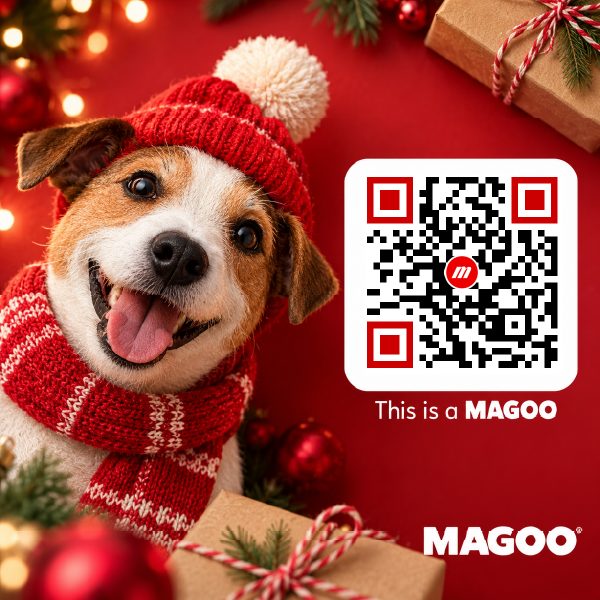
What you get
Right after you pay, your cards are made and your pack opens in the Store.
Letter paper, with cut marks around each card. Download it again whenever you want, in any size.
Each card is its own Magoo, and only its QR opens it. Nobody finds it by pointing Magoo's camera at a card that looks the same.
M for Magoo, your order number and the card's number: M-1043-3 is card 3 of order 1043. Cards with the same design look the same; the code tells you which one is which.

My Magoos shows each pack as one card, with how many you have personalized; tap it to open the pack. Search a card's code to find that card. The receipt email links to your pack too.
Try it first
Every card in the Store has a demo QR, so you see the magic before you buy.
On a computer, scan the card's QR with your phone, then point the phone at the card on the screen. On a phone, tap Try it.
Cards that open on a date show the wait first, then the label dropping with its sound, then the video. The demo plays the design's own video; once you personalize a card, yours plays instead.
Personalize
On your phone, open your pack and tap Personalize on a card. Before or after printing: the QR never changes.
The names go on the label that drops onto the card when it opens. The message is optional.
Up to 40 MB. It plays where the design's video was. No video? The card shows your label with its sound, and nothing else.
Right away, or on a date and time. Some collections come set to a day, like Christmas at midnight, your time; change it here. Before then, scanning the card shows a countdown, even to you.
To see a card before its date, tap Preview on your pack. Scanning the card never shows the surprise early, so nobody can spy on it from your phone.
Saves this card and opens the next one.
Write down which code goes to whom: card 1 for your son, card 2 for your daughter, card 3 for your husband.
At home or at a print shop. Choose the size when you download the PDF.
| Card size | Cards a page |
|---|---|
| 3 × 3 in | 6 |
| 2.5 × 2.5 in | 9 |
| 2 × 2 in | 12 |
In the print window choose Actual size or 100%. Fit to page shrinks the cards and their QR.
Use matte paper or matte cardstock. Gloss reflects light, and the camera loses the card in the shine.
The grey marks outside each corner show where to cut. Keep the QR whole.

Print one page first and scan a card before you print the rest. On 2 in cards the QR is small: hold the phone closer.
What they see
They scan the QR with their phone's camera. Magoo opens in the browser, with no app, and they tap I'm Ready and point the phone at the card.
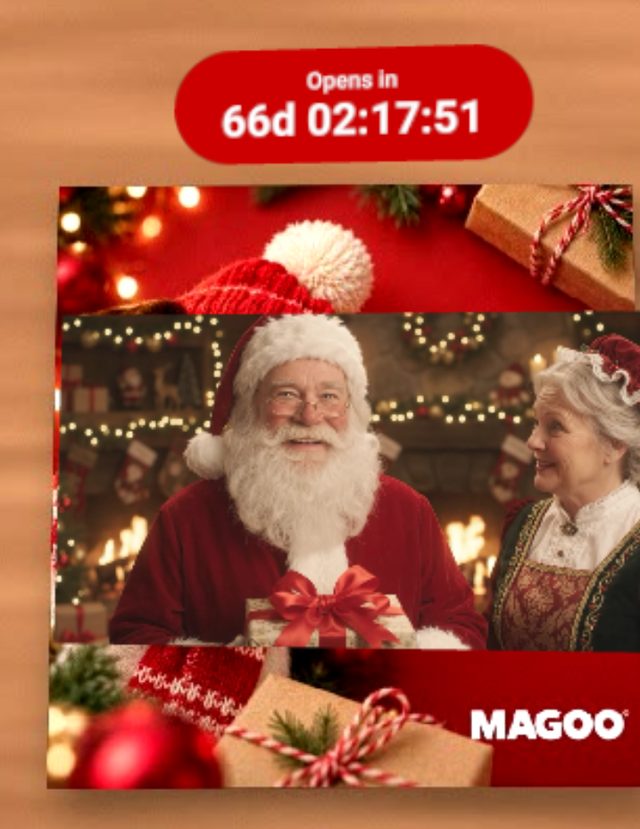
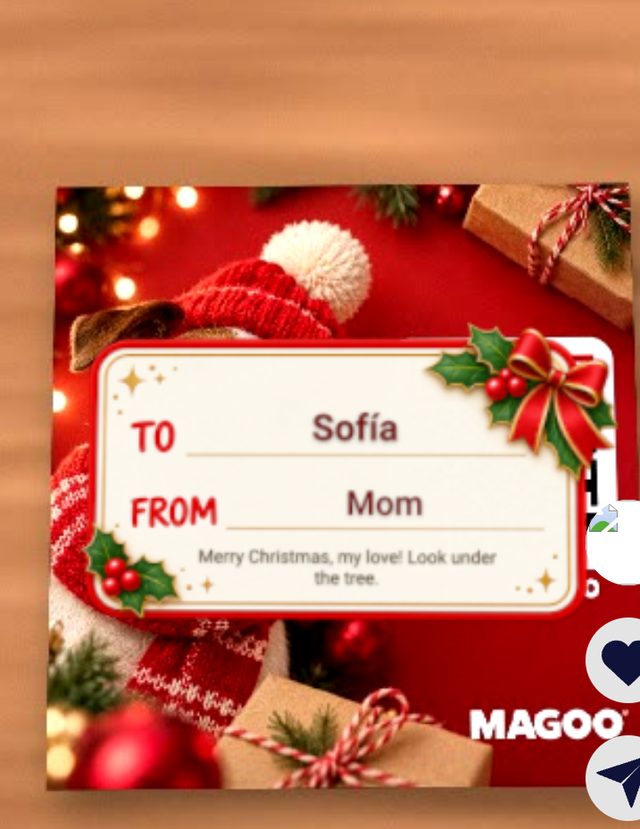
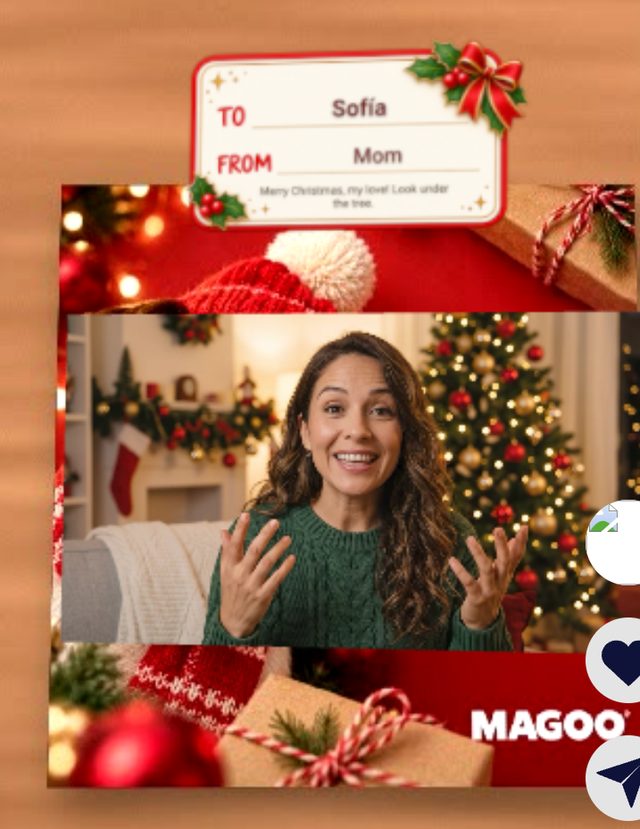
A card that opens right away skips the countdown. They can scan it again whenever they want.
From card to card
Several cards on the table? No need to scan each QR again.
With one card open, move the phone to the next card and bring it close, about 15 cm (6 in), so its QR looks big on the screen. Magoo reads the QR and switches to that card.
Cards with the same design look the same to the camera. The QR is what tells them apart, and from far away it is too small to read.
Close the camera and scan that card's QR with the phone's camera.
Questions
Can I print my cards again?
Yes. Download the PDF again from your pack, in any size. The QRs are the same.
Can I change the video after I give the card?
Yes. Open Personalize, change it and save. The printed QR keeps working.
Do they need an app?
No. The QR opens Magoo in the phone's browser.
What if they scan it before its date?
They see a countdown and a waiting video. Nobody sees the surprise early, not even you.
Can I mix collections in one order?
Yes. Mix designs from any collection and repeat your favorites. Each card opens on its own collection's date, and you can change it in Personalize.
Can I print at a print shop?
Yes. Take the PDF and ask for 100% (actual size) on matte paper.
Can a stranger find my card?
Not with Magoo's camera search: printed cards are not listed there. Anyone who has the card or its link can open it.
I mixed up my cards. Which is which?
Look at the code printed on the card, then search it in My Magoos or find it on your pack: each card is titled by its code.